
- Open an incognito widow on you browser (this is important if you already have a Microsoft or PowerBi account on your computer which can create difficulties with accessing the file) and go to the link of the report from which you want to access the file (provided by CSD).
- Log in with the credentials provided by CSD and usually referenced in weekly update emails.
Example:
|
User: |
|
|
Password: |
BestProjectEver123 |
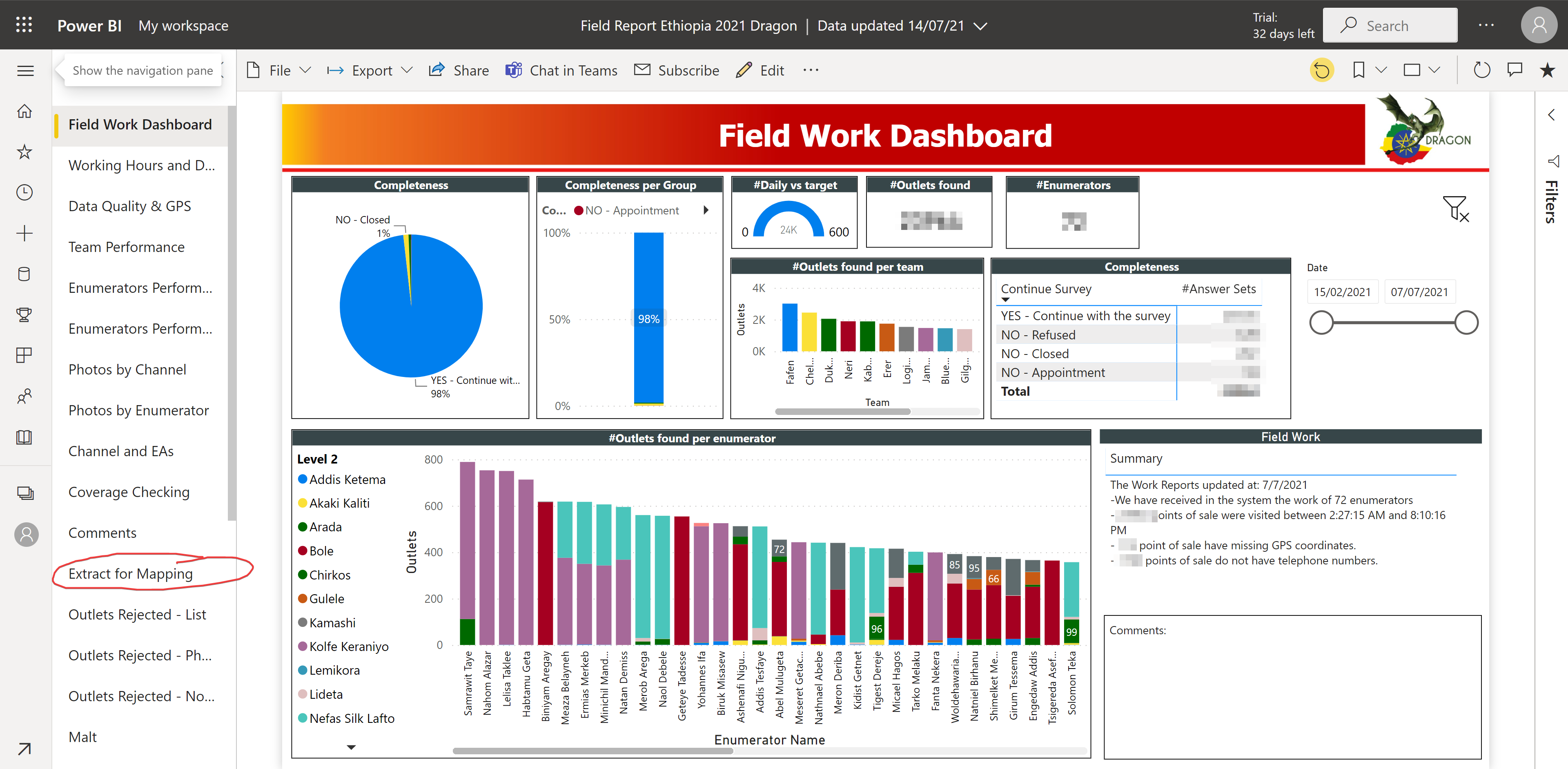
3. You will be able to see the first page of the field report, on the left hand side of the report you will see a list off all available pages – select the page on which you want to extract the data.
Note: you can extract data from any graph or table in the report, but most commonly you will do so from the “Extract for Mapping” page where you can find all of the outlet details.
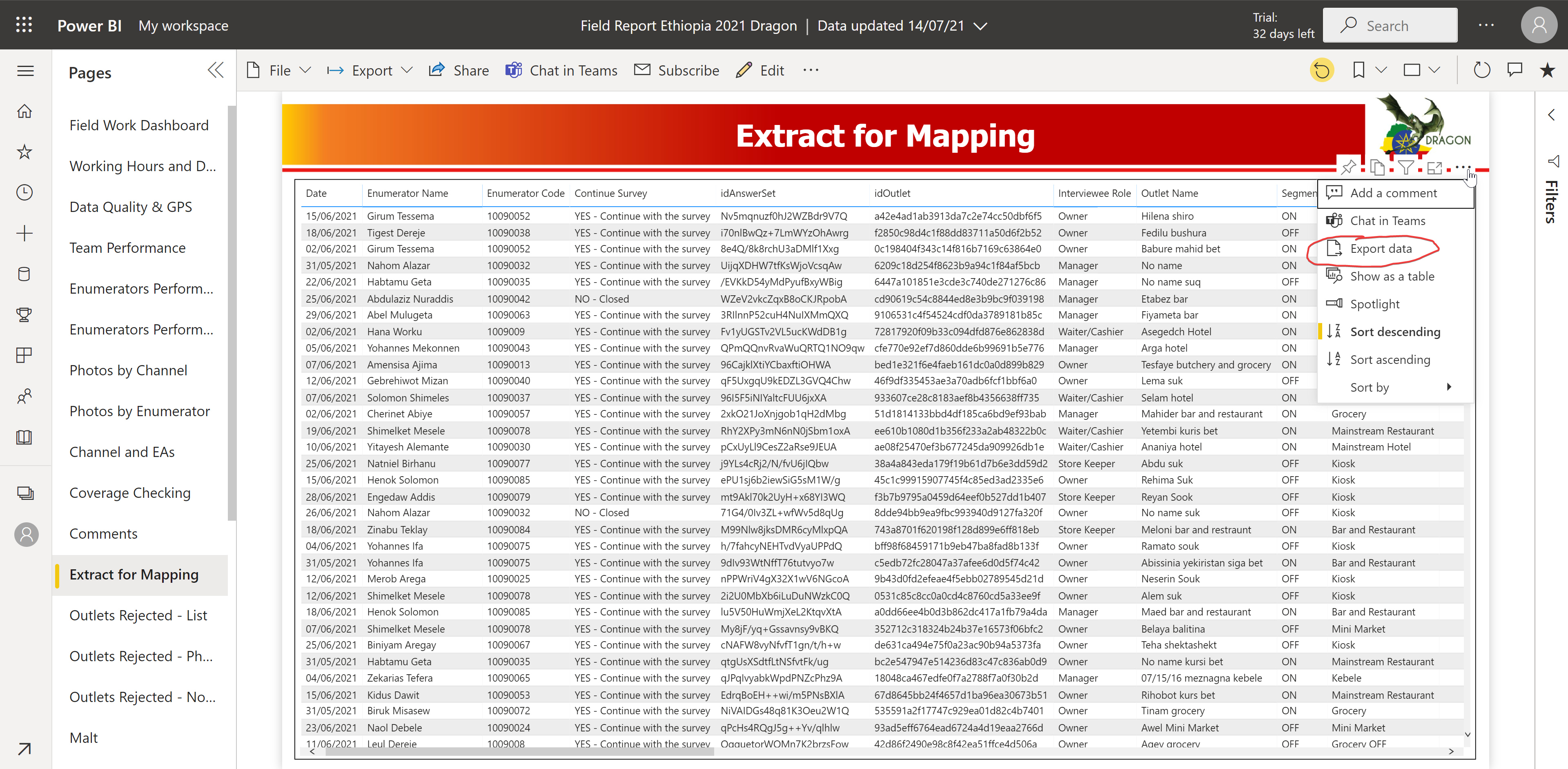
4. On the Extract for Mapping page you will se a list of all the outlets with their detailed information. To export the table, click on the three dots on the upper right corner of the table (it will appear when you click on the table) and select “Export data” from the drop down menu.
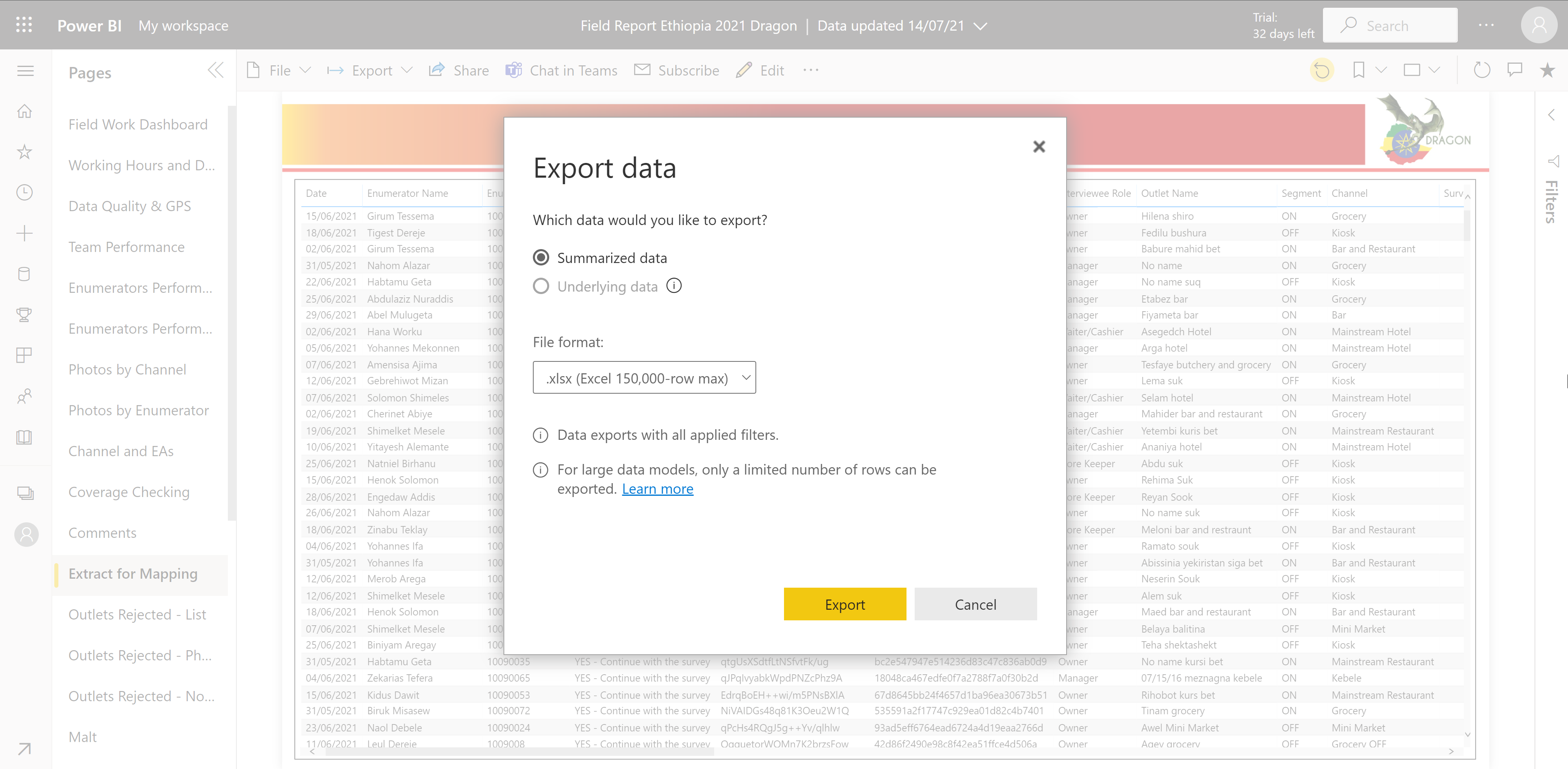
5. Next the following box will appear, and you can just press “Export” button and an excel file with all the information from the table will be downloaded to your computer.
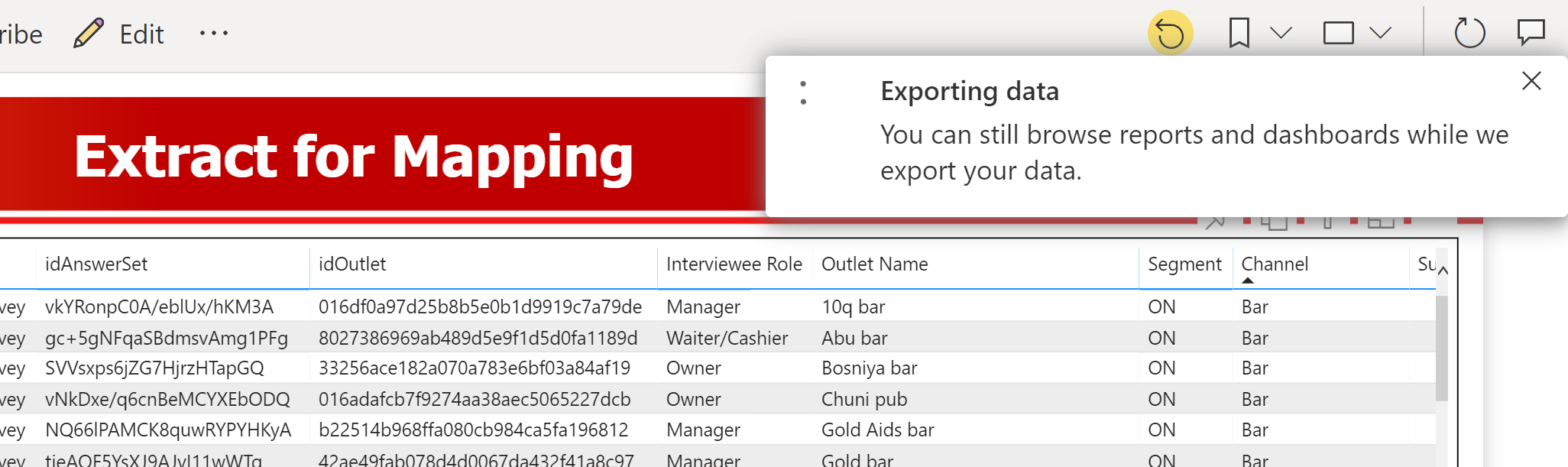
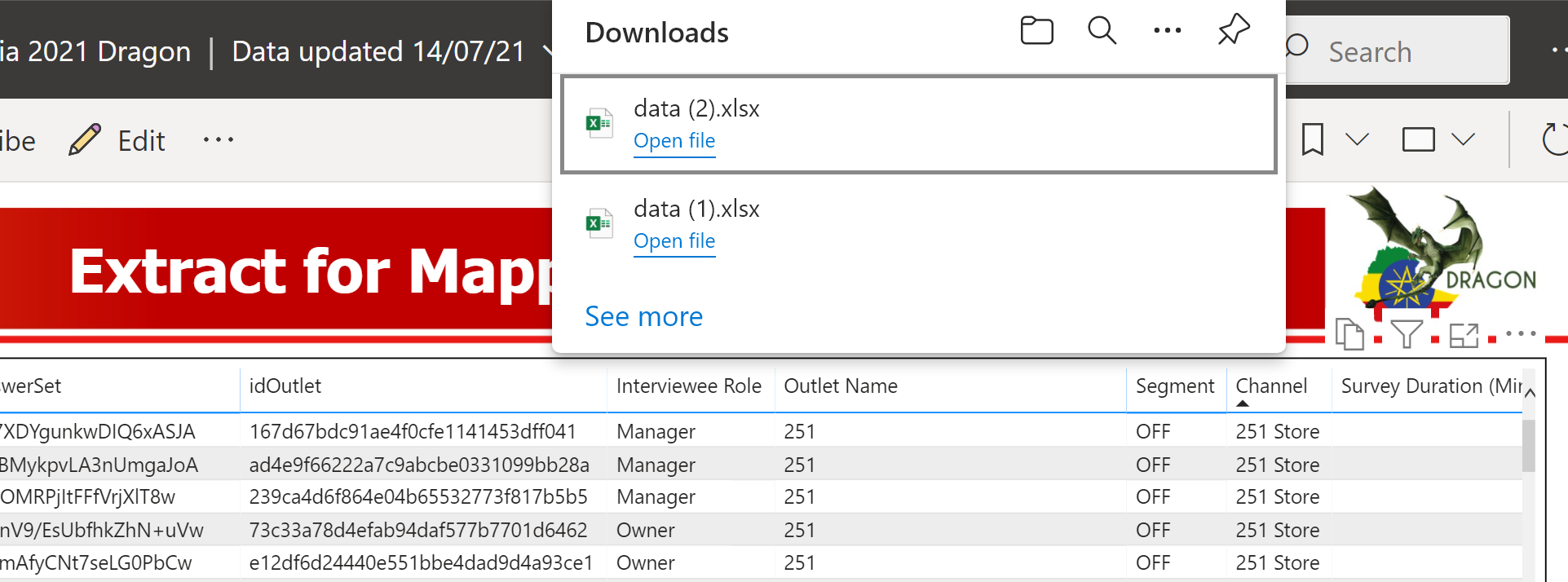
6. A box saying “Exporting data” will appear in the corner. Sometimes it takes a while to export a large file so be patient with it.
7. Congratulations have successfully exported the data! You should be able to find it in your downloads folder.
Tips:
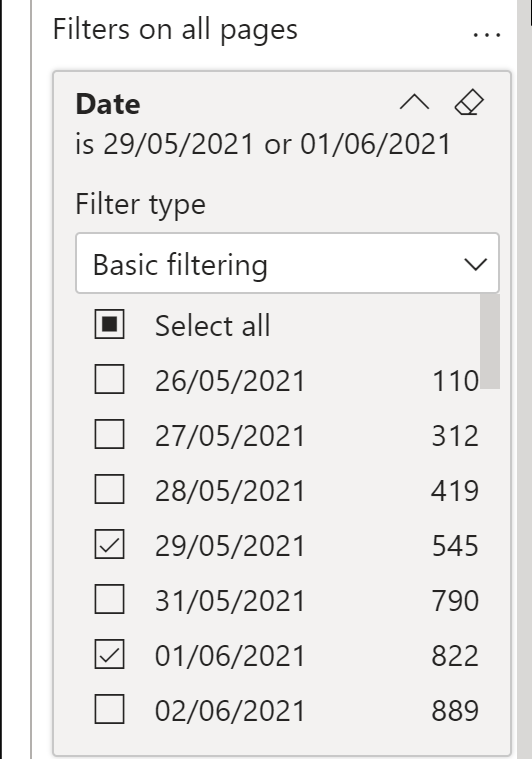
- If you want to export only the data fitting a certain criteria you can do so by filtering the table. To do so click on “Filters” bar one the right side of the report and find a desired filter.
Example: if you want to export only the data for specific dates you can click on the filter for date and select the desired ones.
- If you wish to see more filters simply click on the table and you will be able to filter by any column that is available in the table.
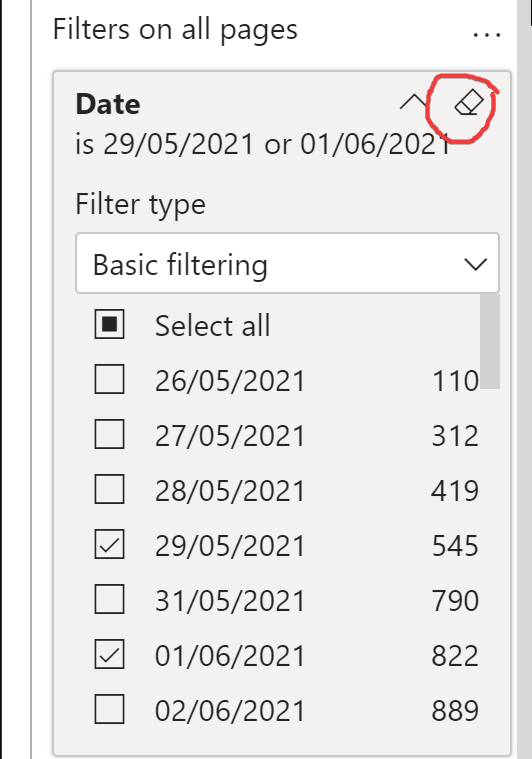
- If you wish to export the data for all the outlets always make sure that all the filters have been cleared by clicking on the eraser icon on the upper right corner of the filter
Comments
0 comments
Please sign in to leave a comment.